Prompt 1
Edit this photo by changing only [specific element]. Preserve the person's face, skin tone, pose, body shape, background, camera angle, and lighting direction.
Prompt Library
Written and reviewed by AI Trend Prompt Hub Editorial Team · Updated 2026-07-02 · 20 copy-ready prompts · 6 FAQs
Use these Gemini AI photo editing prompts when you want a controlled edit of an existing image instead of a completely new picture. The strongest prompts say exactly what to change, what to preserve, how the lighting should match, and what mistakes to avoid. This page focuses on realistic same-face edits for portraits, outfit swaps, backgrounds, product photos, old snapshots, and vertical social images.
A Gemini AI photo editing prompt is an instruction for editing an existing image with clear change and preservation rules. It should describe the exact edit, the details that must stay unchanged, the lighting direction, the realism level, and any negative constraints. For portraits, add same face, same identity, same expression, same pose, no body reshaping, and preserve the original lighting. This helps avoid common failures like changed faces, fake shadows, over-smoothed skin, wrong body proportions, or a background that no longer matches the original photo.
Copy a prompt, replace the placeholders, and run quick variations.
20 prompts
Edit this photo by changing only [specific element]. Preserve the person's face, skin tone, pose, body shape, background, camera angle, and lighting direction.
Clean up the background of this photo. Remove [distraction], keep the subject unchanged, maintain realistic shadows, and preserve the original depth of field.
Turn this casual portrait into a professional profile photo. Improve lighting, simplify the background, add [wardrobe detail], and keep identity unchanged.
Change the outfit to [new outfit]. Preserve face, hair, hands, pose, body proportions, background, and room lighting. Make fabric folds and shadows realistic.
Create a product-style edit of [object]. Improve reflections, shadows, and background cleanliness without changing the object's shape, color, or material.
Make this image look like a natural phone flash photo. Add direct flash, slight grain, imperfect framing, and realistic skin texture without making it look like a filter.
Restore this old photo gently. Improve clarity, reduce damage, balance color, and keep the original face structure, age, expression, and period feeling.
Create a social-ready 4:5 version of this photo. Keep the subject centered, extend the background naturally, and avoid stretching the face or body.
Remove clutter from the table and floor. Preserve the subject, furniture shape, wall color, shadows, and camera perspective.
Make the lighting warmer and more flattering. Keep skin texture natural and do not change facial features, hairline, eye shape, or body proportions.
Create a clean e-commerce background for [product]. Keep product edges, materials, scale, and shadows realistic on a neutral surface.
Turn this selfie into a polished but realistic portrait. Correct harsh light, reduce background distractions, keep natural pores, and avoid beauty-filter skin.
Create a travel-photo edit with [location mood]. Keep the original person and pose, improve sky and color balance, and preserve realistic environmental light.
Convert this image into a square profile avatar. Keep the face large enough, background simple, and expression natural.
Make the image brighter for a listing or portfolio. Preserve the real color of the subject and avoid overexposed highlights.
Replace the wall behind the subject with [background]. Match perspective, contact shadows, and light temperature so the result looks like one photo.
Create a subtle cinematic crop. Add mild contrast, realistic grain, and cleaner composition without changing identity or object details.
Generate three edited options: professional, casual, and creator-style. Keep the same subject and only change background, clothing, and lighting.
Make this image look less AI-generated. Add realistic texture, uneven small details, natural shadows, and remove over-smooth surfaces.
Prepare this photo for a vertical social post. Add clean space above the subject, keep the main face readable, and avoid adding unreadable text.
Explore proven prompt libraries
Browse the strongest outfit, self-photo, photobooth, ChatGPT, and Gemini prompt pages without leaving this site.
Prompt Builder
Fill in the core details, copy the result, then refine one variable at a time inside your image model.
This builder creates prompt text locally. It does not upload a photo or generate an image.
Generated prompt
Create a practical gemini ai photo editing prompt image featuring a clear main subject. Style: realistic studio photo. Format: 1:1 square. Include natural lighting, clear focal point, realistic texture. Keep the composition clean, avoid distorted hands or unreadable text, and make the result ready for its intended use.
Use this formula when you want a more stable result than a one-line prompt. It is written so the prompt can be copied, cited, and refined one part at a time.
Use this checklist before you rerun a prompt. It keeps the output focused and makes it easier to improve one variable at a time.
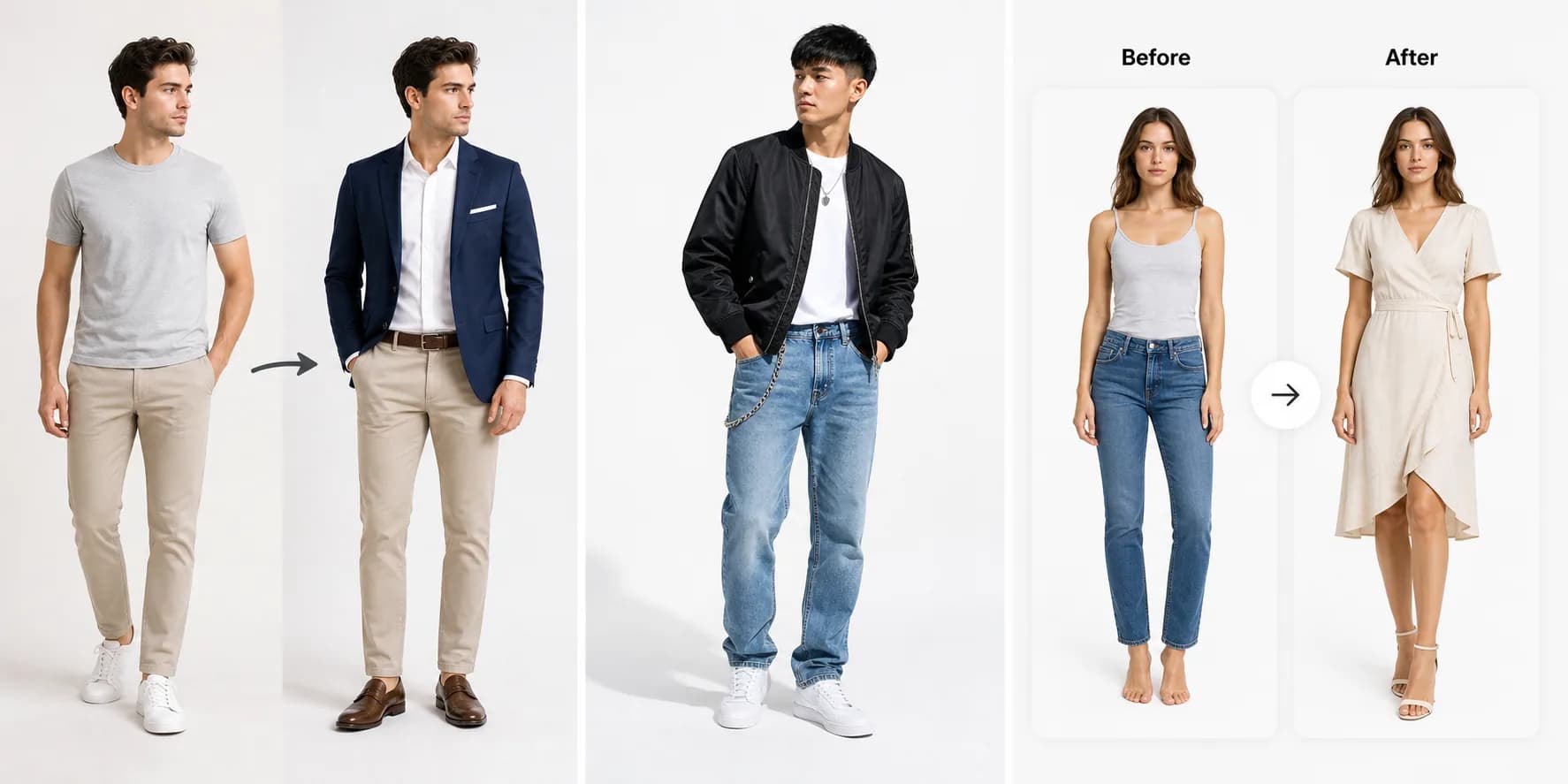
AI-generated example image
The current search signal points to same-face edits, so this example makes the Gemini page more specific and useful.
Prompt used: Edit the uploaded photo. Change only the outfit, keep the same face, identity, pose, body shape, lighting, background, and camera angle. Match fabric folds and shadows to the original photo.
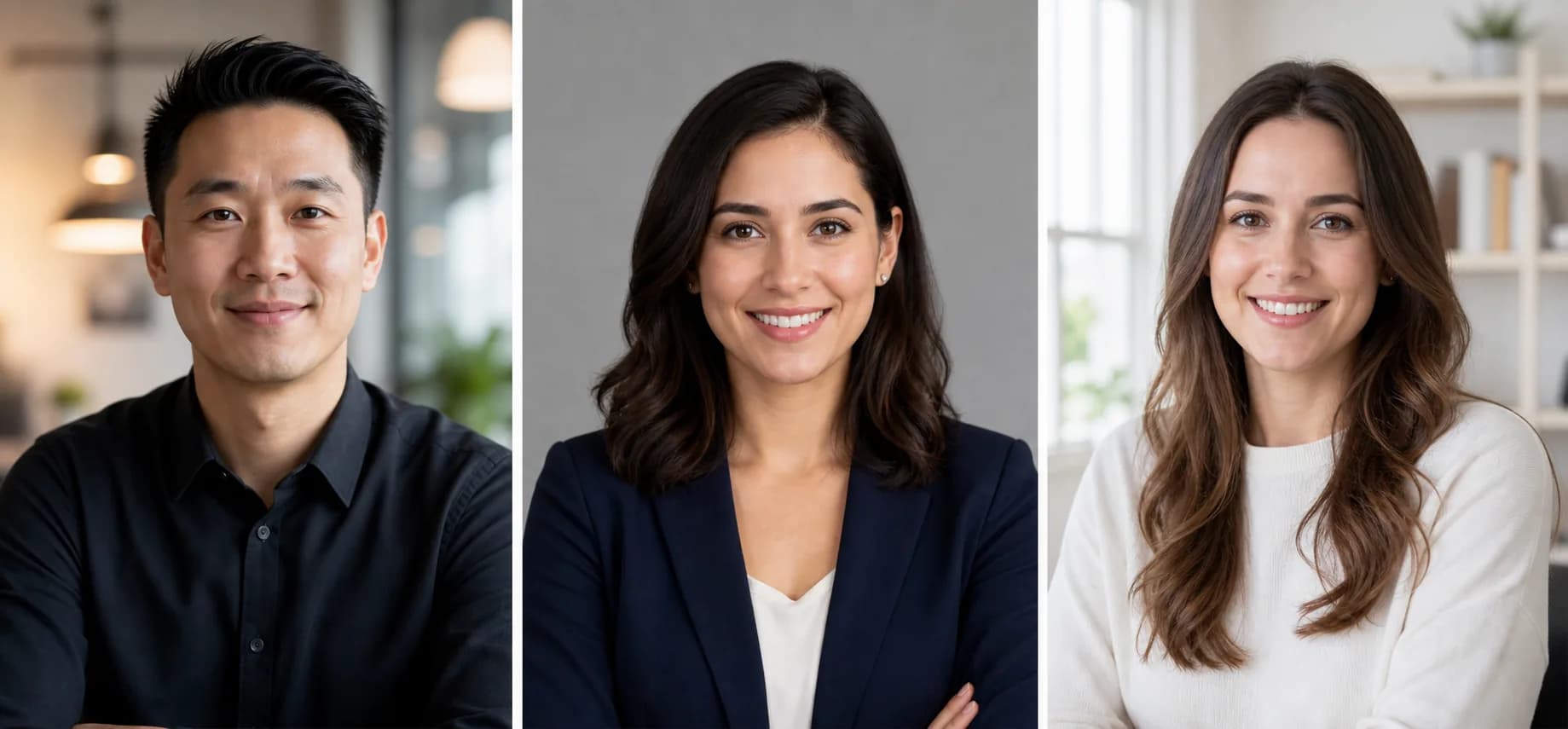
AI-generated example image
Shows a second practical Gemini edit use case beyond outfit swapping.
Prompt used: Improve the uploaded portrait for a professional profile. Preserve identity, face shape, expression, skin tone, lighting direction, and realism. Clean the background without changing the person.
Official references
Editing tools, aspect ratios, safety rules, and usage rights can change. These official help pages explain the current product workflow; AI Trend Prompt Hub is independent and provides adaptable prompt text, not platform policy.
Use this Gemini prompt generator page to copy structured prompts for professional photos, image editing, product shots, portraits, and social visuals.
Open prompt libraryCopy 25 Gemini photo prompts for professional portraits, product shots, outfit edits, high-quality images, social photos, and realistic photo fixes.
Open prompt libraryCopy the exact same-face outfit change prompt to replace only clothing while preserving identity, expression, skin tone, hair, body, pose, lighting, and background.
Open prompt libraryCopy AI dress change prompts for dresses, shirts, formalwear, necklines, sleeves, fabrics, lengths, occasion styling, and realistic garment-specific edits.
Open prompt libraryCopy 20 AI clothes changer prompts for broad outfit swaps, virtual try-ons, shirts, jackets, workwear, streetwear, and realistic garment replacement.
Open prompt libraryCopy 20 ChatGPT prompts for pictures of yourself, including profile photos, outfit edits, travel-style portraits, brand boards, and safe selfie variations.
Open prompt libraryUse this ChatGPT photo prompt generator page to copy structured prompts for profile photos, photo edits, product shots, portraits, and social images.
Open prompt libraryCopy Korean photobooth prompts for AI four-cut photo strips, couple poses, friend selfies, pastel stickers, white borders, and booth prints.
Open prompt libraryCopy 25 of the best ChatGPT image prompts for selfies, product photos, posters, profile shots, trend edits, and social-ready visual ideas.
Open prompt libraryUse a prompt that says exactly what to change, then adds: keep the same face, identity, expression, pose, body proportions, background lighting, camera angle, and photo quality. Ask Gemini to change only the target element.
It is a prompt that tells Gemini how to edit an existing image, including what to change and what details must remain unchanged.
Yes. Use product-specific prompts that preserve shape, color, material, edges, shadows, and scale while cleaning the background.
They often change too many things at once or ignore light direction, contact shadows, texture, face structure, and camera perspective.
Yes. You can copy and adapt them. Check your AI tool and image rights before using final results commercially.
Add preservation rules directly in the prompt: same face, same identity, same expression, same skin texture, same pose, same lighting, and no body reshaping. Keep the requested edit narrow.
Explore proven prompt libraries
Browse the strongest outfit, self-photo, photobooth, ChatGPT, and Gemini prompt pages without leaving this site.